Translating an image involves more than just converting language because the visual layout is part of the message itself. If you attempt to copy and paste text from a photo or a screenshot, you lose the context provided by the position, font size, and background. When you need to translate an image into Spanish while keeping the original structure intact, you must use a tool capable of replacing the text in its exact location.
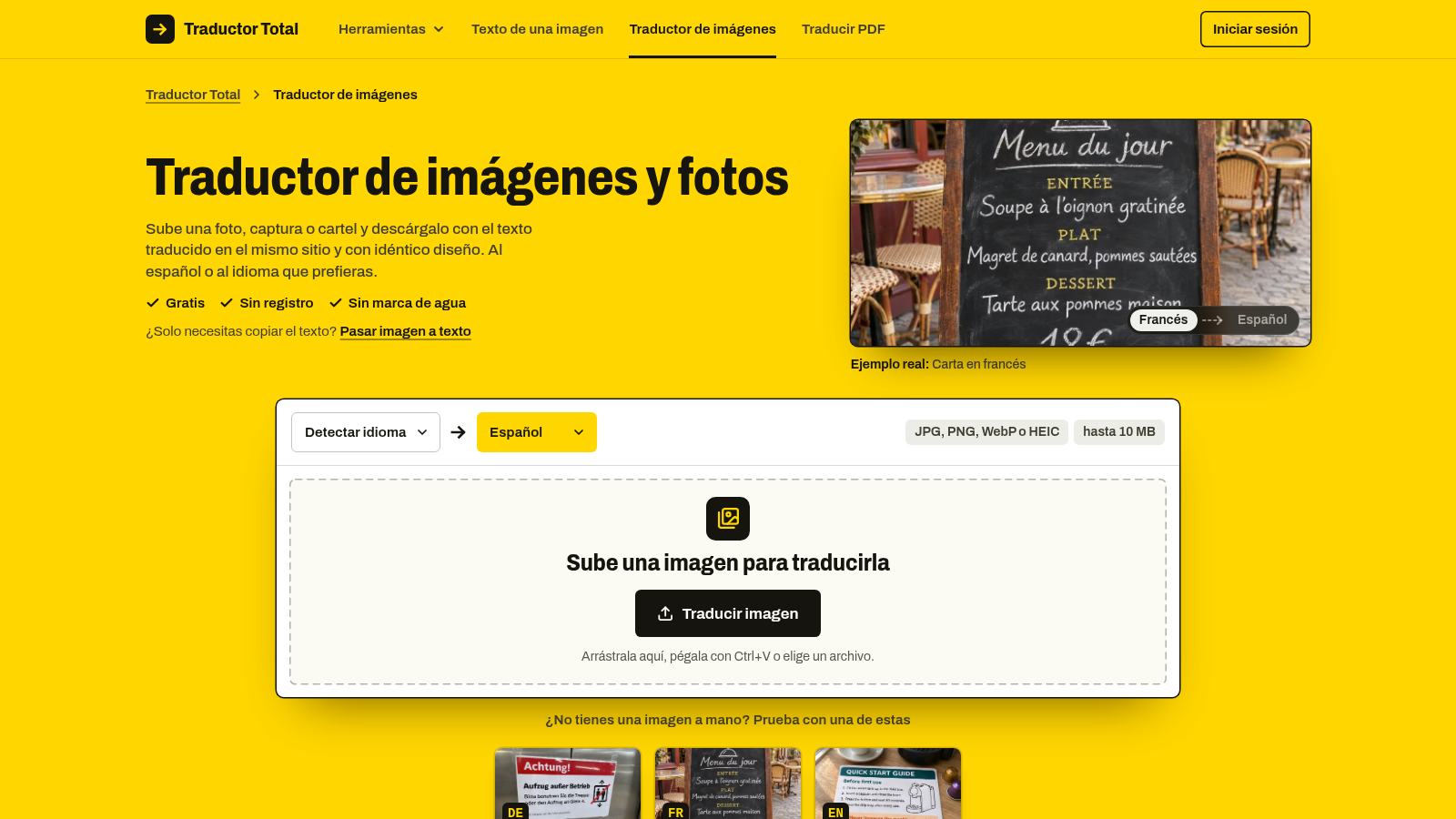
You can see how the layout remains preserved in the interface above, which is designed to handle visual elements directly in the browser.
Why translating an image is difficult#
Translating an image is a different process than translating a simple text document. When you translate text, you only care about the meaning of the words. When you translate an image, you must account for the spatial relationships between words, graphics, and backgrounds. The primary challenge is that text is often embedded into images in ways that make it impossible to isolate without distorting the underlying visual data.
If you use generic tools to extract text, you end up with a list of words that lack their original design context. This forces you to manually recreate the image layout, which is time-consuming and often inaccurate. The goal is to replace the source language with Spanish in a way that respects the original design without creating white boxes or leaving behind remnants of the old text.
Using the right tool for visual translation#
Traductor Total offers a solution that addresses these challenges by using vision models to detect text blocks directly within your files. Instead of providing raw text, it performs a visual replacement.
When you upload a file, the tool identifies the location of each text block. It then translates the content and places the Spanish version back into that same coordinate. Because the tool fills the background with the colors surrounding the original text, you do not end up with messy white boxes or obvious cutouts. You can check the final result using a before and after slider before you download the image to your device.
This approach works well for diverse types of content, such as: * Restaurant menus where the prices and names must stay aligned. * Product labels where you need to understand ingredients or instructions while looking at the physical package. * Supplier spec sheets that rely on tables and diagrams. * Class slides and manga panels where the text placement dictates the flow of information.
This tool is useful for quick tasks where you need the result immediately on a phone or desktop. It handles various file formats including JPG, PNG, WebP, HEIC, GIF, and BMP up to 10 MB. Note that while it excels at clean screenshots and flat backgrounds, it can struggle with handwritten notes or highly decorative fonts. If you are working with a long text, the tool fits it into the original space, which may cause the font size to appear smaller than the original.
Should you translate the image or just copy the text?#
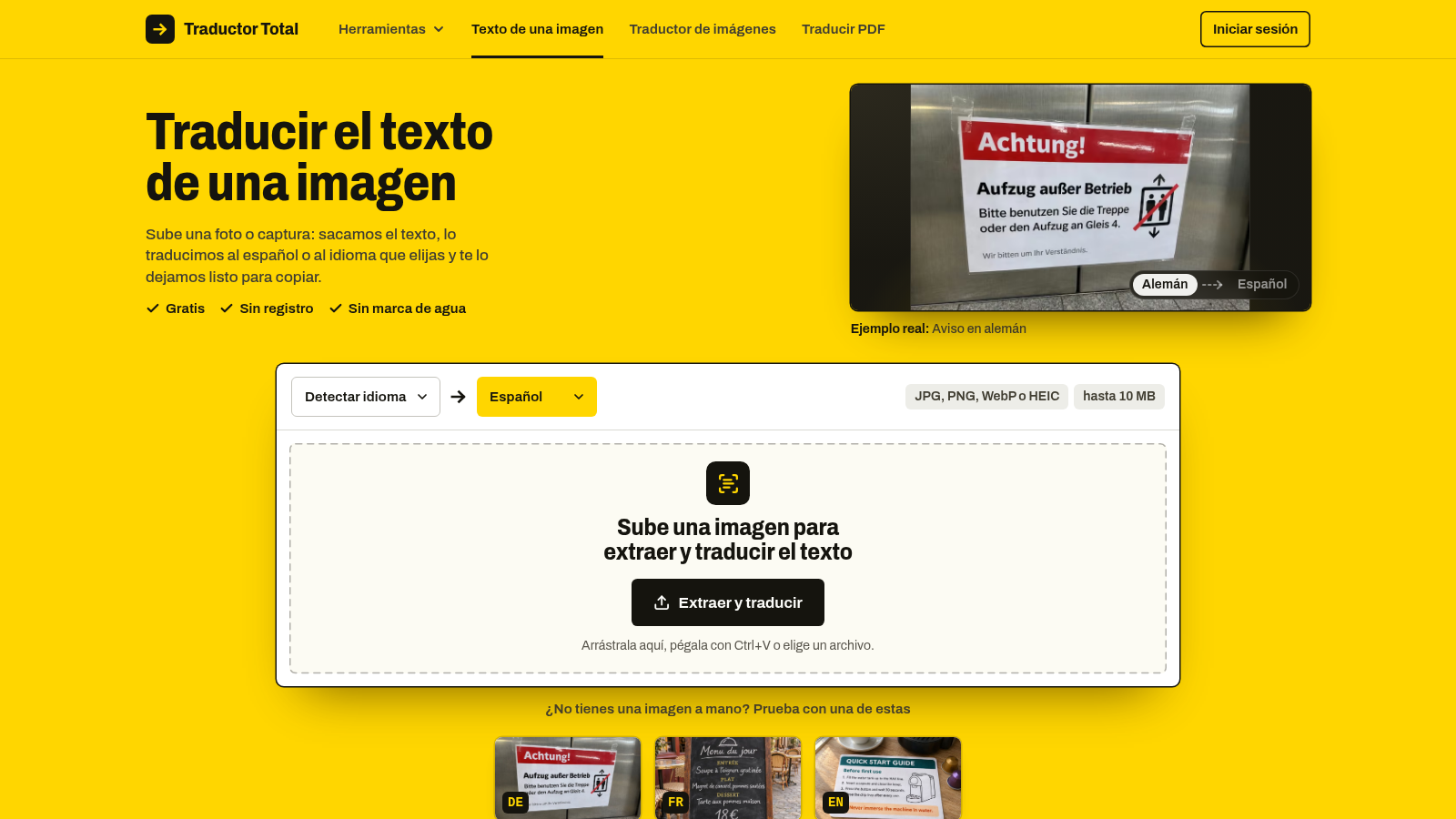
You need to decide if the visual layout is necessary for your goal. If you only need to understand the words for your own reference, you might prefer to copy the text from an image instead of translating the whole design. This is faster if the image is busy or if the formatting is not required for your final purpose. However, if the document has multiple pages, the correct approach is to translate a PDF into Spanish using the designated page to maintain document continuity.
Tips for better results#
To ensure the best output, consider the quality of your source file. Clear, high-resolution images with consistent lighting yield the most accurate results. Avoid uploading photos where the text is obscured by busy patterns, as these can make it difficult for the vision model to detect the boundaries of the text blocks correctly. Always verify the translation on the screen before saving, especially if the source image contains complex designs.
Frequently asked questions#
Does the tool change the resolution of my image?#
The downloaded file maintains the original size and resolution of the file you uploaded. It does not add watermarks or logos, ensuring the result is clean for your use.
Which file types are supported?#
You can upload JPG, PNG, WebP, HEIC, GIF, and BMP files provided they are under 10 MB in size.
Do I need to create an account to use the service?#
There is no account required and no software to install to use these tools. Everything runs directly within your web browser on both mobile and desktop devices.
Choose your file, upload it to the platform, and review the translated version before downloading it to your gallery or storage folder.