You are sitting in a quiet shared office or standing on a crowded train without headphones, and a contact sends an eight-minute audio message. It contains project instructions, dates, and client changes that you need right away. You cannot play it out loud, and scrubbing across a tiny audio player with your thumb rarely gets you the specific details you need.
Learning how to turn WhatsApp voice notes and audio into text solves this bottleneck immediately. Instead of waiting until you have a private moment and a notepad, you can convert the spoken words into searchable lines that you can copy, review, and save.
Getting a clean transcript from a voice recording is not always straightforward. Chat applications use specialized audio containers, phones hide local files behind complex directory structures, and ordinary voice recognition tools often choke on conversational speech.
Why turning voice notes into text is harder than it looks#
Voice notes behave differently from clean studio recordings. When people talk into their phones, they pause, repeat syllables, and use filler words. More importantly, chat platforms compress sound heavily to save bandwidth. WhatsApp and Telegram record voice notes inside OGG or OPUS containers, which many basic transcription tools refuse to open without a separate conversion step.
File access adds another layer of friction. Voice messages are stored inside an app sandbox rather than an open folder on your desktop. Before you can transcribe anything, you have to extract the actual file from the messaging app without degrading the audio.
Finally, room acoustics change transcription accuracy drastically. When a speaker holds the phone near their mouth, speech recognition models capture almost every consonant clearly. When someone sends a recording of a lecture or a meeting captured from several yards away, room reverberation and background noise blur word boundaries. Generic software that expects clean dictation often returns fragmented or nonsensical sentences under those conditions.
Extracting the audio file from your device#
Before running any transcription method, you need to extract the raw audio file from the chat. The method varies depending on where you use WhatsApp.
Saving voice notes on iPhone#
Apple locks file directories tightly, so you must use the standard share sheet:
- Open the chat and locate the voice note.
- Tap and hold the message bubble until the menu appears, then tap Forward.
- Tap the Share icon in the bottom right corner of the screen.
- Select Save to Files and choose a folder inside your iCloud Drive or local iPhone storage.
The exported file will generally be saved with an M4A or OGG extension, ready for upload.
Saving voice notes on Android#
Android allows direct sharing or file system extraction:
- In your chat, press and hold the voice message to highlight it.
- Tap the three dots in the top right corner and choose Share.
- Send the file to a cloud drive like Google Drive, or send it directly to your phone file manager folder.
If you prefer exploring your storage directly, WhatsApp voice notes live under your device storage in Android/media/com.whatsapp/WhatsApp/Media/WhatsApp Voice Notes, grouped into date-stamped folders as OPUS files.
Saving voice notes on WhatsApp Web#
Using a computer browser is the simplest way to get audio files onto your hard drive:
- Open WhatsApp Web and find the voice message.
- Hover over the audio bubble and click the small downward arrow in its upper right corner.
- Click Download from the dropdown menu.
Your browser will save the file directly to your Downloads folder in its native OGG format.
The manual approach: listening and typing#
The first thing most people try when receiving a long voice note is transcribing it by hand. You open a blank document on a laptop, put in one earbud, press play on the phone, and try to type at conversational speed.
This method breaks down almost immediately on messages longer than two minutes. A normal speaking cadence runs between 130 and 170 words per minute, while the average typing speed sits between 40 and 60 words per minute. You find yourself pausing every five seconds, dragging the scrub slider back to catch a missed date, and accidentally skipping over entire phrases.
A ten-minute voice note often takes thirty to forty minutes of exhausting, stop-and-start typing. It works in an emergency for a single thirty-second message, but it becomes unbearable for meeting recordings, lectures, or long project briefings.
The playback workaround: playing into another microphone#
The second common workaround involves opening a dictation tool or voice typing utility on a computer, setting the phone next to the laptop microphone, and hitting play.
While this avoids manual typing, the output is frequently poor. Sound played through a small phone speaker loses dynamic range and picks up ambient room noise before reaching the second microphone. Built-in dictation software depends on continuous, clean audio input, so it mishears words, drops sentences when volume fluctuates, and ignores sentence breaks entirely.
You end up with a single, unpunctuated block of text that takes almost as much time to edit and verify as typing it from scratch.
Using Traductor Total for browser-based audio transcription#
The most practical way to handle voice messages, interviews, and class lectures is to run the original file directly through an audio-to-text service that handles conversational speech. The web tool Traductor Total provides a focused solution designed for media files that users cannot simply copy and paste.
To convert your recording, visit the page to transcribe audio to text. It runs entirely in your desktop or mobile browser without requiring an account, app installation, or fee, and it leaves no watermark on your output.
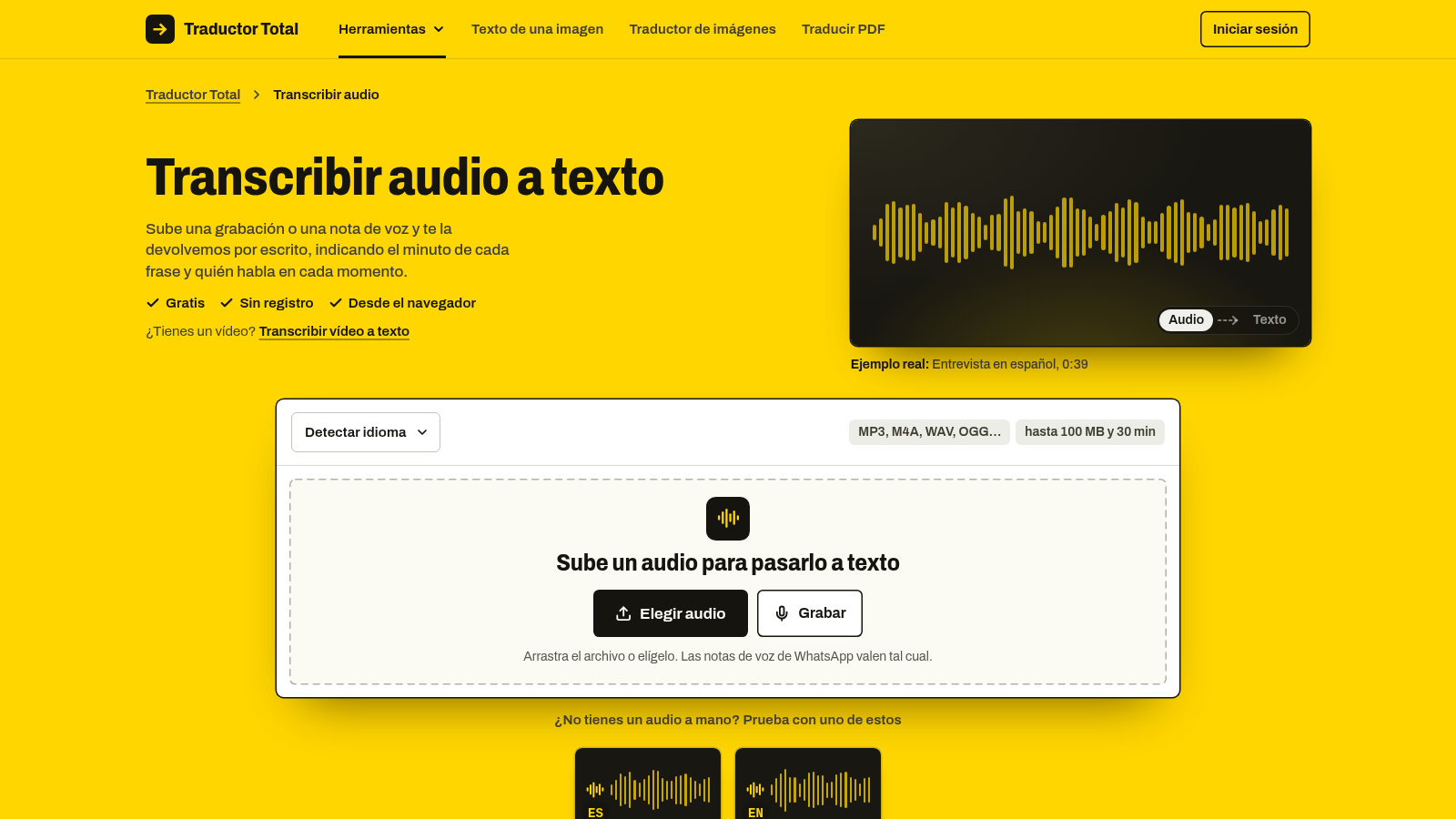
Notice the upload box in the screenshot above, which clearly marks support for files up to 100 MB and 30 minutes in length across multiple formats.
How to transcribe your audio file#
- Save your voice note from WhatsApp or Telegram to your device using the extraction steps covered earlier.
- Open the audio transcription page in your browser.
- Upload your audio file. The tool accepts native WhatsApp and Telegram OGG and OPUS files without manual format conversion. It also accepts MP3, M4A, WAV, AAC, FLAC, WMA, WebM, and the audio tracks from MP4 or MOV video files.
- Enable speaker identification if your recording contains a conversation. The tool can split the transcript into Speaker 1, Speaker 2, and subsequent speakers.
- Wait for the tool to process the speech recognition. It automatically detects the spoken language and returns the transcript organized with timestamps for each phrase.
- Review the text. Tapping on any individual line jumps the audio player directly to that exact moment in the recording, allowing you to double-check any unclear names or figures instantly.
- Copy the final text, download it as a plain TXT document, or export it as an SRT subtitle file if you plan to use it inside a video editor.
Practical distinctions between audio, video, and translation tasks#
Traductor Total uses dedicated, single-purpose pages for specific media tasks rather than cramming everything into one interface.
If you have a video clip where visual pacing matters, you should transcribe a video to text on its dedicated page instead of pulling out the audio track first. If someone sends you an audio message in French, German, or Portuguese and you want to read what was said directly in Spanish, use the page to translate audio. That page transcribes the source language and translates the spoken content phrase by phrase into Spanish by default, with twenty target languages available.

As shown in the image above, the platform separates media conversion duties into specific tools, such as optical character recognition for images, keeping each process focused on one media type.
Honest limits and considerations#
Audio transcription relies on clear acoustic input. A voice note spoken directly into a smartphone microphone yields high accuracy with minimal correction. Conversely, an audio file recorded in a large room with echo or significant background traffic will require manual proofreading.
Keep these constraints in mind:
- Files cannot exceed 100 MB or 30 minutes in length.
- The tool transcribes filler words such as “eh” or “you know” if they are clearly pronounced by the speaker. Cleaning up those conversational habits requires editing the downloaded text.
- The system detects source languages automatically and outputs the transcript in the language spoken. If you need the text translated into another language, you must use the audio translation page rather than the standard transcription tool.
Which transcription method fits your situation#
Different situations call for different approaches depending on the length of the recording and your available time:
- For voice notes under thirty seconds: listen directly if you have headphones, or jot down notes manually if you are at a desk.
- For long voice messages, meetings, or interviews up to 30 minutes: extract the file and upload it to Traductor Total. The automated timestamps and speaker labels let you skim to the relevant sections without listening from start to finish.
- For recordings over 30 minutes: split the audio file into shorter segments before uploading, or use dedicated long-form audio editing software.
Frequently asked questions#
Can WhatsApp transcribe voice notes automatically on its own?#
WhatsApp does not provide a universal, built-in transcription feature across all platforms and languages. While some operating system updates introduce localized voice-message summaries in specific regions, saving the audio file and using a browser-based transcription tool remains the most consistent approach across Android, iPhone, and desktop computers.
What file formats do WhatsApp and Telegram voice notes use?#
WhatsApp and Telegram package voice recordings primarily as OGG or OPUS files, while voice memos forwarded on iOS may appear as M4A files. You do not need to convert these formats manually if your transcription tool accepts OPUS and OGG directly.
How accurate is speaker identification on a voice recording?#
Speaker identification groups phrases by voice characteristics into Speaker 1 and Speaker 2 labels. It works well when two people speak in distinct pitches and take clear turns, but rapid interruptions or overlapping speech in a noisy room will require quick manual adjustments in your text editor.
Why do filler words appear in my transcript?#
Automated speech recognition transcribes what is actually spoken rather than summarizing the message. If the speaker clearly articulates filler words like “um” or “eh”, the model records those sounds as text, leaving stylistic cleanup to the user.
Take the voice note sitting unplayed in your chat, save it to your device using the steps above, and upload it to the transcription page to read the conversation immediately.