To translate a scanned PDF into Spanish and keep the tables intact, you need a workflow that runs optical character recognition (OCR) and rebuilds the translated text inside the original coordinate grid. Standard copy-paste methods fail because a scanned document is a flat image that contains no digital text layers, cell borders, or column definitions.
When a technical manual, supplier invoice, import spec sheet, or research paper arrives as a scanned PDF, traditional tools scramble the visual structure. The columns collapse, rows merge into messy paragraphs, and numbers detach from their labels. Solving this problem requires targeting the technical reasons PDF pages resist editing, rather than forcing the file through tools built only for raw text.
This guide breaks down why table layouts fail during translation, evaluates the standard workarounds, and explains how to process scanned documents so the resulting Spanish PDF preserves its original structure.
Why Scanned PDFs Break Tables and Visual Layouts#
The fundamental issue stems from how the PDF file format handles data. Unlike a word processor document or a spreadsheet, a PDF is not a collection of paragraphs, headings, and structured data grids. It is essentially a digital canvas. Every element on a digital PDF page is positioned using fixed geometric coordinates: a specific string of characters is instructed to display at an exact horizontal and vertical offset, rendered in a specific font and size. The file format does not store an inherent concept of a sentence boundary, a paragraph, or a table cell.
When a PDF is scanned from physical paper, the situation becomes even more challenging. The file contains no text elements at all. It is simply a container displaying a raster image of the paper sheet. A standard translation tool cannot read pixels; it requires character strings.
Even when software extracts text from a scanned table, three mechanical breakdowns happen:
- Geometry without context: Text extractors read left-to-right across the entire page width. If a table has three columns, the extractor often reads the first line of column one, continues straight into the first line of column two, and finishes with column three before moving down. This mashes separate data fields into a single meaningless sentence.
- Expansion of translated text: Spanish sentences typically require fifteen to twenty-five percent more space than the original English, German, or Chinese text. When longer Spanish phrases are inserted into rigid table cells without automatic font resizing, the text either clips off the page or spills over adjacent border lines.
- Loss of graphic elements: Tables rely on borders, background fills, and alignments to convey meaning. Generic converters regularly strip these visual anchors, turning structured financial reports or technical specification matrices into plain blocks of unformatted text.
Workaround 1: Copying and Pasting into Standard Translation Engines#
The most common workaround is opening the PDF, highlighting the text, and pasting it into a general text translation engine. For scanned documents, users often run a basic desktop OCR utility first to make the text selectable before copying.
This method breaks down immediately on scanned tables. Basic OCR engines rarely understand table matrices. When you copy the recognized text, tab stops and column alignments disappear. Numbers that belong to specific row headers get displaced, which presents a major risk for import buyers reviewing part dimensions, technicians checking electrical tolerances, or accounting teams validating invoice totals.
Furthermore, this approach requires you to manually create a new document, draw new tables, and paste each translated snippet back into its corresponding cell. For a single three-row table, this is tedious. For a forty-page machinery manual or financial audit containing dozens of tables, the manual reconstruction can take days. It also introduces human error, as numbers and technical codes can easily be pasted into the wrong grid positions.
Solution 2: Automated Layout Reconstruction with Traductor Total#
A specialized layout-preserving document translator tackles the root causes directly. Instead of extracting text into a blank window, Traductor Total processes the file as a visual document, running OCR across scanned pages and replacing the text elements inside their original visual boundaries.
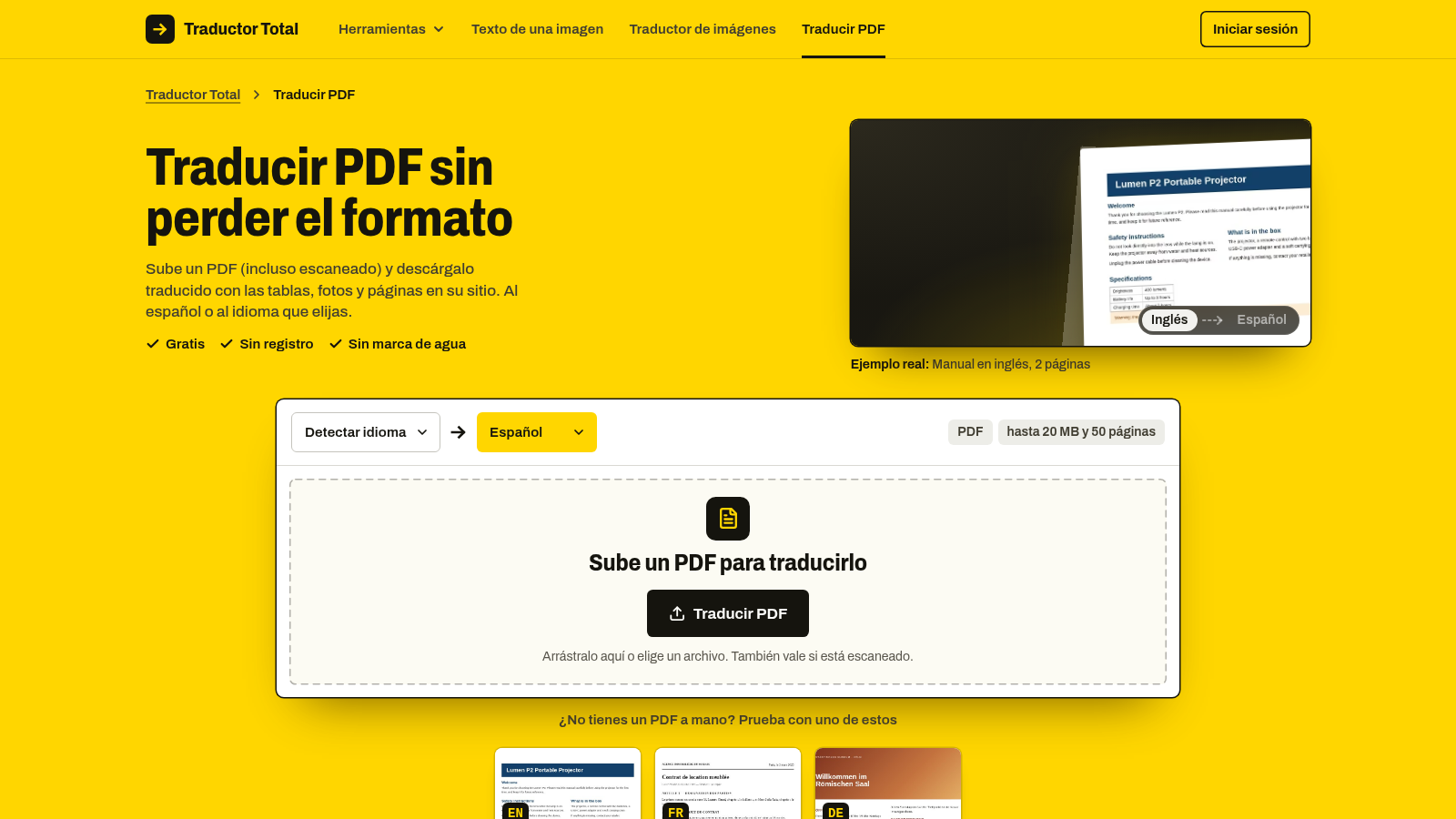
In the image above, notice the document upload workspace, which specifies support for files up to 20 MB and 50 pages while maintaining the original layout.
When you need to translate a PDF into Spanish, the platform identifies the language automatically and processes the document in the browser without requiring software installation, account registration, or fees. It resolves the core layout problems through a deliberate process:
- Optical Character Recognition: If your PDF contains scanned pages, or a mix of digital text and flat scans, the tool applies OCR vision models to turn the page images into machine-readable text without requiring pre-sorting.
- Document-wide context: The entire document is processed at once. This ensures terminology remains consistent across every page, which is essential for engineering manuals, legal contracts, and academic papers.
- Dynamic repositioning: Each page is rebuilt with the Spanish translation placed at the original coordinates. Because Spanish words are often longer than words in the source language, the tool adjusts the font size to fit the boundaries of the existing table cells and columns.
- Visual element preservation: Signatures, company logos, product diagrams, and photo inserts remain untouched in their original locations.
- Side-by-side verification: Before downloading the completed PDF, you can inspect each translated page directly alongside the original scan to confirm that cell contents and numbers match.
To use this approach, you open the PDF tool in your web browser on desktop or mobile, select your file, and initiate the translation. The download yields a normal PDF that opens in any standard viewer without watermarks.
There are clear operational limits to understand. The file must stay within 50 pages and 20 MB. If a scan is skewed, blurred, or suffers from dark spine shadows from a book binding, OCR accuracy degrades. In addition, this tool serves as a reading and operational aid. It does not replace a sworn human translator when an official, legally certified translation is required by a government agency or court of law.
Solution 3: Translating Single-Page Image Scans Directly#
Frequently, documents do not arrive as tidy multi-page PDFs. Field technicians, students, and logistics workers often receive scans as loose image files, such as JPG or PNG photographs taken with a smartphone or generated by flatbed scanners.
Converting a loose image into a PDF just to translate it introduces unnecessary steps and can degrade image sharpness. In these situations, using an image-specific translation workflow is more practical.
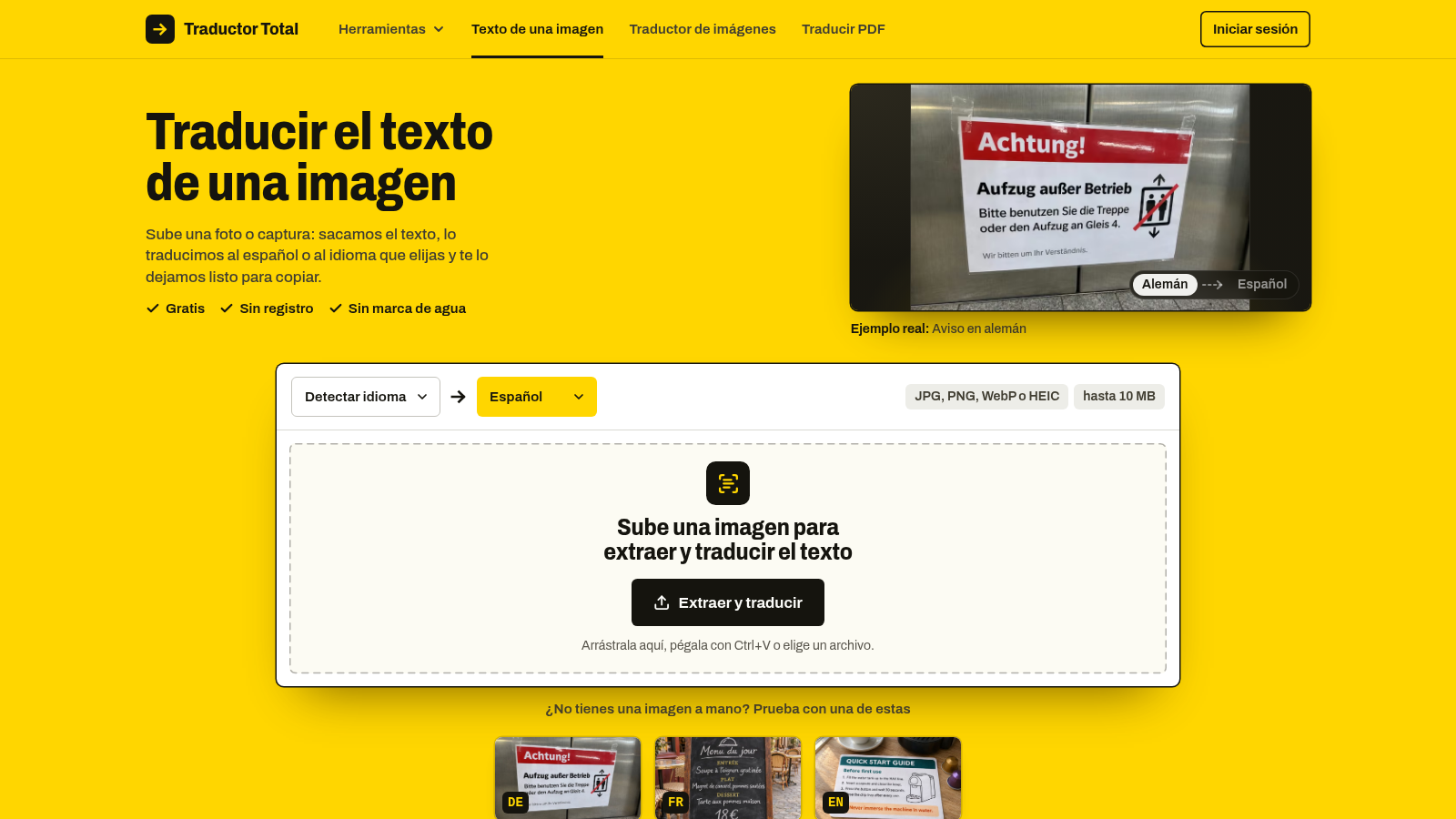
The homepage interface shown above highlights direct upload paths for users working with standalone image files rather than complete PDF binders.
If you have a standalone image of an invoice, receipt, or spec sheet, you can translate an image into Spanish directly. This tool applies vision models to read the text off the image canvas, translates the contents into Spanish, and overlays the translated text directly onto the picture. It avoids the intermediate step of compiling photos into a PDF container while keeping the relative placement of table rows and callouts intact.
Solution 4: Converting to Word for Manual Rebuilding#
Another frequent approach involves running the PDF through desktop conversion software to produce an editable DOCX file. Once the file is converted, the user applies machine translation plugins or translates the text within the software.
This approach works reasonably well on modern, native digital PDFs. However, on scanned documents, desktop converters attempt to guess table borders by analyzing blank pixels. If a scan has poor contrast, faint grid lines, or slight skewing, the converter often generates hundreds of disjointed text boxes instead of a unified table grid. Selecting and translating text inside fragmented floating text boxes is exceptionally slow.
Use this method only if you must completely alter the structure of the document, add new data rows, or rewrite significant portions of the text. For purely reading and understanding the material with its original formatting intact, the overhead of fixing broken conversion boxes is rarely justified.
Choosing the Right Approach for Your Document#
Different situations call for different tools depending on document quality, volume, and final intent:
- Dedicated PDF layout translator: Best for importing companies, accounting offices, technicians, and students who need to read foreign-language contracts, supplier catalogs, or research papers quickly. It handles up to 50 pages and preserves the visual layout without manual formatting.
- Direct image translator: Best for single-page receipts, photographed warehouse labels, or individual loose scans saved as JPG or PNG files.
- Manual conversion to DOCX: Best when the document requires deep editorial restructuring, substantial text revisions, or complete redesign rather than straightforward reading.
- Sworn human translator: Required for legal filings, visa paperwork, court submissions, and official government records where a certified stamp of accuracy is mandatory.
Frequently Asked Questions#
Can OCR handle mixed documents with both text and scanned pages?#
Yes, modern document translation tools process mixed files without extra preparation. Pages with existing digital text are parsed directly, while pages containing only flat raster images pass through the OCR engine before layout reconstruction.
Does an automated PDF translation replace a sworn or certified translation?#
No, automated tools serve as functional reading aids for comprehension, business review, and study. Official paperwork requested by courts, embassies, or regulatory bodies requires certification by an authorized human sworn translator.
Why does translated Spanish text sometimes look smaller in the final PDF?#
Spanish phrasing is naturally longer than English and many other languages, requiring more horizontal space. To keep the text from overlapping table borders or running off the page, the layout engine automatically reduces the font size to fit the original cell dimensions.
What scan settings produce the most accurate translation results?#
Aim for a flat scan at 300 DPI with good contrast and no shadows across the page spine. Straight, clean scans allow the OCR vision model to distinguish character shapes accurately, particularly small numbers inside dense table grids.
Ensure your scanned PDF is rotated right-side up, verify that the file size is under 20 MB, and upload it to the PDF translator to view your translated tables side by side.